 Space Backup Manual
Overview
Chapter 1 of 14 · Contents
Space Backup copies the folders of every computer in your company to drives of the company's own computers, and the photos and videos of your iPhones and iPads to those computers, with no cloud storage. This chapter explains the ideas the rest of the manual builds on: the company, its devices, destinations, encryption, Space Relay and the dated backup folders.
What Space Backup does#
Most small companies already own more disk space than they use: a spare drive in the office PC, a USB disk on a shelf, a NAS in the corner, the free gigabytes on every laptop. Space Backup turns that space into the company's backup.
- You install the same small app on each computer (Windows, macOS or Linux). The computers of one company find each other on the office network, recognise each other as members of the same company, and back each other up.
- You choose folders to back up (a right-click on a folder, Add to Space Backup, is enough) and drives to back up to (any drive or network share on any of the company's computers). By default every folder goes to every destination the company has.
- Backups run at night in a night window (01:00–05:00 unless you change it). Only new and changed files move; unchanged files cost no extra space.
- Every backup is a dated folder that looks like a complete copy of what was backed up that day. You can open it with Explorer, Finder or your file manager.
- Every copy is verified, and a weekly check re-reads the backups and repairs a damaged file from a good copy on another drive or computer. Is my data safe? See File safety and integrity.
- Your files never go to a cloud. They live only on your company's computers. The Space Backup service at spacebackup.net only knows who is in your company and which devices they have; it never holds a file, and never sees an encryption key in a form it could use to read your backups.
- iPhones and iPads back up their photos and videos to the company's computers too. A phone is a source only: it sends its own photos and videos, it never stores anyone else's backups.
- Offices in different places reach each other directly when they can and through Space Relay when they can't.
Space Backup is made by Digital Sign Technologies Inc. (Mississauga, Ontario, Canada). The website is https://spacebackup.net, downloads are at https://spacebackup.net/download/, and support is at support@spacebackup.net.
Note: Space Backup is free on your own devices: unlimited computers, drives, folders and history, every feature. You pay only for traffic that Space Relay carries between sites beyond the free 50 GB a month (Space Relay).
Companies#
Everything in Space Backup belongs to a company: one trust domain, one set of people and devices that back each other up. Your computers back up only to computers of the same company, and computers of another company can neither see yours nor write to them.
How a company is made#
There is nothing to set up on a website first. The first person who signs in with an email address of a new company creates it (see Join a company):
- Anna installs Space Backup on her PC and signs in with anna@acme.com.
- Nobody at acme.com has a company yet, so the service creates one. Anna becomes its owner. Its name is, at first, the email's domain (
acme.com); the owner can rename it ("Acme") at any time. - Anna's PC makes the company's key on the spot (see Encryption). Nobody ever sees or types it.
- Bob installs Space Backup on his PC and signs in with bob@acme.com. He joins Acme, either at once or after an admin approves him (below), and his PC receives the company key from Anna's PC, end to end.
An email address belongs to at most one company at a time.
People and roles#
Each person in a company is a member, identified by their email address. Members have one of three roles:
| Role | Who | What they can do |
|---|---|---|
| Owner | The person who created the company | Everything an admin can; cannot be removed or demoted |
| Admin | Members the owner or an admin promoted | Invite and remove people, approve joins, remove devices, approve restores of another computer's backups, approve a device waiting for the company key, rename the company, turn auto-join on or off, set relay auto top-up |
| Member | Everyone else | Back up their own devices, restore their own backups, share their own devices' backups, use albums |
Admins manage the company on the admin page, https://spacebackup.net/account/admin, after signing in there with their email. Every member has their own page, https://spacebackup.net/account/me. Details: Administration.
Who may join#
How a new person gets in depends on their email address:
- An invitation. An admin invites an email address (any address, a personal one too). When that person signs in to Space Backup with exactly that address, they are a member at once.
- The company's own domain, auto-join on. If the admin turned on Anyone with an @acme.com email may join automatically, anyone signing in with an @acme.com address joins at once. It is off by default.
- The company's own domain, auto-join off. Someone signing in with an @acme.com address who was not invited is pending: the owner and admins get an email with an Approve link, and the person's computer waits until one of them approves.
- A personal address (gmail.com, outlook.com and the other public mail providers) never joins or creates a company by itself. It joins only by invitation. Until then the app says "Ask your company's admin to invite anna@gmail.com." This avoids accidental one-person companies; someone who really is setting up Space Backup for a new company can still choose Create my own company.
What the company is used for#
The company ties together:
- the devices that may back up to each other (next section);
- the company key, which lets those devices recognise each other and talk privately;
- the approvals: restores of a lost computer's backups, devices waiting for the key, people waiting to join;
- sharing: a device's backups or an album shared with a colleague (Photos, albums and sharing);
- the Space Relay allowance and credit, which is per company.
Devices#
A device is one install of Space Backup signed in to the company: a Windows PC, a Mac, a Linux computer, an iPhone or an iPad. Each device belongs to the member who signed it in.
The computer's name#
Every device has a machine name, also called its computer name. It matters more than it looks:
- it is the folder its backups go into on every destination (
ANNA-PC,Annas-MacBook,Annas-iPhone); - it is its name in the company, shown in device lists, destination lists and approvals.
So no two active devices of a company may have the same name. A computer starts with its own name (the Windows computer name, the Mac's or Linux computer's host name); the app asks for another one only if that name is already used in the company or cannot be used as a folder name. The rule and what to do: Choose a computer name.
Once a computer has made backups, it keeps the name it backed up under even if you rename the computer in the operating system, so its backups are never split between two folders by accident. If you choose a new name on purpose, later backups go into the new folder and the earlier ones stay under the old name.
What each kind of device does#
| Device | Backs up its own files | Holds backups for others | Notes |
|---|---|---|---|
| Windows PC | Folders | Yes, on its destinations | Tray app and sbctl command line |
| Mac | Folders | Yes, on its destinations | Menu-bar app and spacebackup command line |
| Linux computer | Folders | Yes, on its destinations | Background service, spacebackup-gui and the spacebackup command line |
| iPhone / iPad | Photos and videos | No | Only connects out to the computers |
All computers are equals: a Windows PC backs up to a Mac's drive, a Mac to a Linux server's, a Linux laptop to a Windows PC's, with the same layout, checks and encryption.
Devices and the admin page#
Owners and admins see every device of the company on the admin page (and in Devices… in the apps): its name, its owner's email, when it was last seen and which version it runs. Remove device takes a lost or retired device out of the company: it can no longer reach the others, and the company key is replaced on the remaining devices automatically. See Devices.
Destinations#
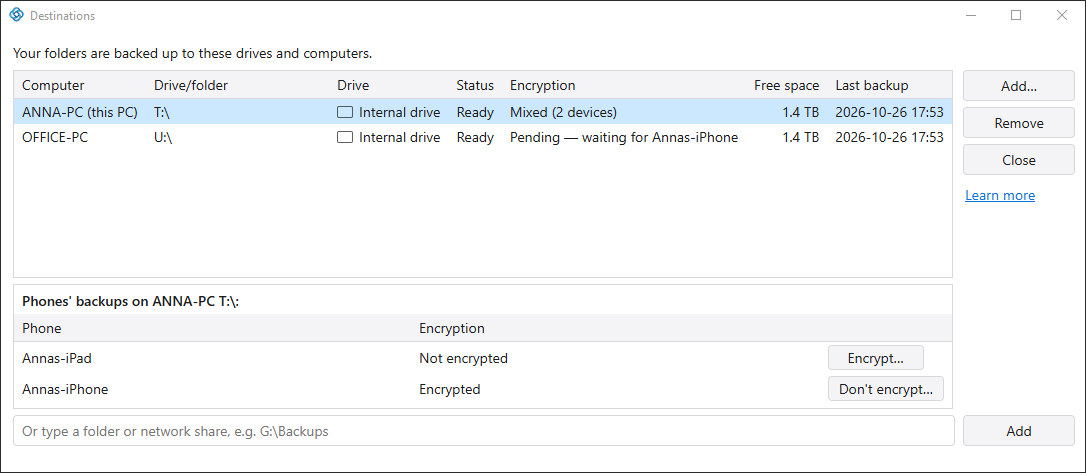
A destination is a drive or folder that holds backups: an internal disk, a USB drive, a Thunderbolt disk, an SD card, a network share or NAS. Each destination belongs to one computer, the one it is attached to. That computer writes into it, for itself and on behalf of the other devices of the company.
- You add destinations on the computer they belong to (Destinations… → Add…). Any computer's destinations are offered to every other device of the company: they appear in each device's Destinations list within a minute.
- Each destination says what kind of drive it is: Internal drive, External drive (USB, Thunderbolt, SD card: it can be unplugged) or Network (a share or NAS).
- Each folder chooses where it goes: All destinations (the default: every destination of every computer in the company, including ones added later), Selected destinations (the ones you tick), or Auto, N copies (the app spreads N copies over different computers and different physical disks, the backing-up computer last). See Destinations.
- Backups go into a
SpaceBackupfolder on the destination: addingG:\orG:\BackupscreatesG:\SpaceBackuporG:\Backups\SpaceBackup; a destination folder already namedSpaceBackupis used as it is. - A drive that was away catches up: if a USB drive was unplugged or another computer was off, every backed-up folder that is behind on that drive is backed up to it as soon as it is back ("G: is back: backing up Documents to it now."), without waiting for the schedule.
A computer needs no destination of its own: a laptop can back up only to the office computers' drives.
Note: Destinations hold the other devices' backups too. A drive that holds backups for five computers needs room for all of them. The Destinations window shows the free space of every destination, and a drive with less than 1 GB free is shown as Full.
Encryption#
Space Backup encrypts in two layers, and nobody ever handles a key:
- The company key lets the company's devices recognise each other and encrypts everything that travels between them (on the office network, directly between sites, or through Space Relay). It is made on the first computer of the company and handed to each new device end to end, sealed so that only that device can open it. The company key does not decrypt backups.
- Each device has its own data key. Folders set to Encrypt this folder's backups (the default for every new folder) are encrypted on the computer before they leave it, file contents and file names. The other computers store only encrypted files: they can keep, link, check and repair them, but cannot read them. Only the computer that made a backup can read it.
- iPhones and iPads choose per destination drive: Encrypted (the default) or Not encrypted.
- Plain folders (encryption turned off, for example for photos you want to open on the destination) are ordinary files on the destinations; restoring them is just copying them back.
- Your own devices read each other's backups. Every device signed in with your email that has the company key gets the data keys of your other devices automatically, with no approval and no email, so your computers, phone and TV show all your photos. A lost computer of yours is restored the same way, on any other device of yours.
- Someone else's backups need an approval: the device's member or a different owner or admin approves the request. Only then is that computer's data key released, to that one device.
Encryption starts once the computer is signed in and has the company key; until then, folders set to Encrypt are backed up as plain files and the app says so.
Details of the keys, what is signed and what the service never sees: Security.
Space Relay in short#
Computers on the same network reach each other directly. Computers in different places (two offices, a laptop at home, an iPhone on the road) need a way to meet: that is Space Relay, a service run by Digital Sign Technologies at relay.spacebackup.net.
- It is on by default and needs nothing set up. Settings has one checkbox, Connect PCs at other sites through Space Relay, and a status line such as "Connected · 1.2 GB relayed this month" or "Not needed: all PCs are on this network".
- It introduces devices and, only when they cannot connect directly, passes their traffic along. The traffic is already encrypted end to end between the two devices, so the relay can read nothing and stores nothing.
- Direct first. Devices behind the same router use their local addresses; a computer whose router allows it is reached directly; only otherwise is the relay used.
- Price: the first 50 GB each month are free for the whole company (data relayed in and out). Beyond that, prepaid packs that never expire: 500 GB $9 · 2 TB $25 · 5 TB $49, optionally topped up automatically. Direct connections between sites are always free.
- When the free traffic is used up and no credit is left, relayed backups pause and the app offers Activate Space Relay…; backups on the local network keep working.
Note: Do the first full backup of a computer on the office network where you can. After that only the daily changes cross between sites, which keeps relay traffic low.
Full details: Space Relay.
Date folders and hard links#
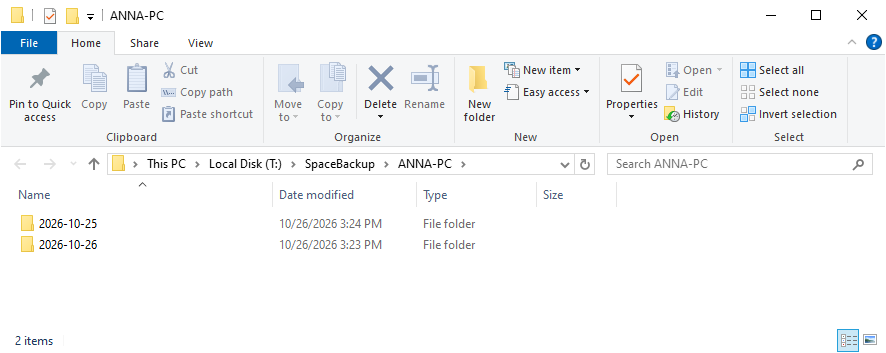
Every backup run writes into a folder named after the day:
G:\SpaceBackup\ANNA-PC\2026-10-17\C\Users\anna\Documents\report.docx
G:\SpaceBackup\ANNA-PC\2026-10-18\C\Users\anna\Documents\report.docx- On a Windows source the path inside the date folder starts with the drive letter (
C\Users\anna\…); a network share starts withUNC\server\share\…. - On a Linux or Mac source it starts with
root(OFFICE-). Names that a Windows drive cannot hold are escaped, so any backup can sit on any kind of destination and move between them.NAS/ 2026- 10- 18/ root/ home/ anna/ projects/ … - An iPhone or iPad writes
Annas-, by year and month taken.iPhone/ 2026- 10- 18/ Photos/ 2026/ 10/ IMG_ 1234. HEIC - Encrypted folders sit under a folder named
.sbe-…inside the date folder, with encrypted names. - With Put the computer name before the date folder switched off (a setting of each computer), the order is
SpaceBackup\instead.2026- 10- 18\ ANNA- PC\ …
Each date folder looks like a complete copy, but unchanged files are not copied again. A file that is the same as in the previous date (same size and modification time) gets a hard link: one copy of the data on the disk with a name in every date folder. So ten date folders take about one full copy plus what changed. A file deleted on the computer is simply missing from the newer date folders; the older ones still have it.
- How many dates are kept: the Backups to keep on each drive setting (10 unless you change it) counts date folders per computer on each destination; older ones are removed. A folder can keep its own number. The newest backup of each folder you back up is always kept, whatever its age. See How many backups are kept.
- Backed-up files are protected against being edited in place, because one file on disk can be the copy of many dates.
- Drives without hard links (FAT32 and exFAT USB disks, some NAS shares) get full copies of unchanged files instead; they need about N times the space for N dates, and the app warns once.
- An unfinished date is marked as incomplete until its run completes; an interrupted run resumes in the same date folder, from the last good block of a large file.
Warning: Don't edit, move or delete files inside a
SpaceBackupfolder by hand. To get files back, copy them out (plain folders) or use Restore… (any folder, required for encrypted ones). See Restoring files.
How a backup flows#
What happens in one night, for one computer:
- Its time comes. Each folder has a frequency (Daily, Weekly, Monthly, Only once, or an advanced one); daily backups start in the night window, each folder and computer at its own minute so they spread out. Back up now, Space Backup Now on selected items, or a drive coming back can start one at any time.
- It looks at the folder. It lists the files and compares them with the previous date on each destination: new and changed files will be copied, unchanged ones linked.
- It encrypts (folders set to Encrypt): each file and its name, on the computer itself.
- It sends. To its own drives directly; to another computer once, over the office network, directly between sites, or through Space Relay. That computer writes to its fastest drive first and then copies to its other drives locally, so the data crosses the network only once.
- It verifies every file. A fingerprint is taken as the file is read, the source is read a second time from the disk itself, and the destination reads back what it wrote. A mismatch is copied again; the app warns, because it usually means faulty memory or a failing disk.
- It finishes the date. When every file is in place the date folder gets its list of files and fingerprints (its manifest) and is marked complete. Older dates beyond the max number of backups are removed.
- It checks later. Every week (or month, as set) each computer re-reads the backups on its destinations, at low priority, and repairs a damaged file from a good copy on another drive or computer.
An iPhone or iPad sends its photos and videos to one of the computers (one on the same network if there is one) and, where the computers support it, that computer copies the finished date on to the other computers chosen, so the phone sends each photo only once. See The iPhone and iPad app.
A computer that is off, a drive that is unplugged or an office that is offline simply waits: the work is kept and done when they are back.
What is on which platform#
| Windows | macOS | Linux | iPhone / iPad | |
|---|---|---|---|---|
| What it backs up | Folders | Folders | Folders | Photos and videos |
| Holds backups for other devices | Yes | Yes | Yes | No |
| App | Tray app | Menu-bar app | Tray icon or main window (spacebackup-gui) and a background service | App with Backup, Photos, Shared with me and Settings tabs |
| Command line | sbctl | spacebackup | spacebackup | — |
| File manager menus (Add to Space Backup, Space Backup Now, Restore from Space Backup…) | File Explorer | Finder | Nautilus, Nemo, Dolphin | — |
| Badge on backed-up folders | Explorer badge (optional, administrator rights once) | — | Emblem (Nautilus, Nemo) | — |
| Sign in by email link or code | Yes | Yes | Yes | Yes |
| Encryption | Per folder | Per folder | Per folder | Per destination drive |
| When it backs up | Per folder: Daily, Weekly, Monthly, Only once, advanced; night window | Same | Same | Once or daily (iOS) |
| Wakes the computer for backups | Yes (setting) | — | No (always-on machines just run) | — |
| Space Relay | Yes | Yes | Yes | Yes (connects out only) |
| Restore | Restore… window, Explorer menu, sbctl restore | Restore… window, Finder menu, CLI | Restore… window, file manager menu, CLI | Restore to the Photos library |
| Photos viewer for backed-up photos | Photos… | Photos… | Photos… | Photos tab |
| Albums and sharing | Yes | Yes | Yes | Yes |
| Google Drive backup | Yes | Yes | Yes | — |
| iCloud Photos backup | Yes (iCloud for Windows' folder) | Yes (the Photos library) | No: Apple has no iCloud app for Linux | — |
| Automatic updates | Yes | Yes | Yes for the .tar.gz install; the .deb and AppImage tell you about a new version | Through Apple |
| Progress on the lock screen | — | — | — | Yes |
| Assistant ("back up my Chicago trip") | In the Photos window | In the Photos window | In the Photos window | Yes |
Every button, menu item and setting of the Windows, macOS and Linux apps also exists as a command, with the same names on all three. See Command line reference.
Glossary#
| Term | Meaning |
|---|---|
| Account service | The service at https://spacebackup.net/account that knows the companies, members and devices, sends sign-in emails and approvals, and passes sealed keys between devices. It never holds files. |
| Admin page | https://spacebackup.net/account/admin: members, invitations, devices, approvals, sharing and relay credit, for the owner and admins. |
| Auto, N copies | A folder's destination choice: N copies spread over different computers and physical disks. |
| Auto-join | The company setting "Anyone with an @domain email may join automatically"; off by default. |
| Backup folder | The SpaceBackup folder on a destination, which holds every device's backups. |
| Company | Everyone and every device that back each other up; see Companies. |
| Company key | The key the company's devices share to recognise each other and encrypt their connections. Handed over end to end; never shown. It does not decrypt backups. |
| Computer name / machine name | A device's name in the company and the name of its folder on every destination. |
| Data key | A device's own key, which encrypts its encrypted folders. Only that device holds it (and a recovery copy the service cannot open). |
| Date folder | One backup run's folder, named yyyy-MM-dd, a complete-looking snapshot of that day. |
| Destination | A drive or folder that holds backups, on one of the company's computers. |
| Device | One install of Space Backup signed in to the company. |
| Hard link | A second name for the same data on a disk; how unchanged files appear in every date folder without taking space. |
| Handover | A device that has the company key sealing it to a new device, end to end. |
| Invitation | An admin's invitation of an email address to the company; needed for personal addresses. |
| Backups to keep on each drive | How many date folders are kept per computer on each destination (default 10); a folder can keep its own number. |
| Member | A person of the company, by email address; role owner, admin or member. |
| Night window | The hours in which scheduled backups run (default 01:00–05:00). |
| Pending | A person (or their device) waiting for an admin to approve their join. |
| Plain folder | A folder whose backups are not encrypted: ordinary files on the destinations. |
| Space Relay | The relay at relay.spacebackup.net that connects devices in different places and passes their encrypted traffic. |
| Waiting for the company key | A new device that is signed in but has not yet received the company key. |
| Weekly check | The regular re-reading of all backups on a computer's destinations, repairing damaged files from other copies. |
How this manual is organised#
| Chapter | What it covers |
|---|---|
| 1. Overview (this chapter) | The ideas: company, devices, destinations, encryption, Space Relay, date folders |
| 2. Getting started | Installing on Windows, macOS, Linux and iOS, signing in, joining a company, your first backup, and a checklist for admins |
| 3. Backing up on the computers | Folders, destinations, schedule and night window, how many backups are kept, replication, rearranging, badges, restoring files, Google Drive, updates |
| 4. The iPhone and iPad app | What to back up, once or daily, Wi-Fi and cellular, encryption per drive, removing and restoring photos, the assistant |
| 5. Photos, albums and sharing | Albums, sharing albums and backups, guests from outside the company, captions, covers, Live Photos, the Photos window on a computer |
| 6. Notifications and history | What notifies you, the notification history, backup history |
| 7. Company administration | The admin page, members, invitations, roles, devices, approvals, key recovery |
| 8. Command line reference | Every sbctl and spacebackup command, settings keys, JSON and exit codes |
| 9. Account service API | The HTTP API of the account service, for integrators |
| 10. Peer protocol | How devices talk to each other, for integrators |
| 11. Space Relay | The relay, its prices and billing, and its protocol |
| 12. Security model | Keys, encryption, what the service never sees, what is signed |
| 13. Troubleshooting | Common problems, the firewall, logs and the diagnostic bundle per platform |
| 14. File safety and integrity | Plain answers: are my files intact, what if a drive or file is damaged, can backups be deleted, who can read them |
New here? Continue with Getting started.