 Space Backup Manual
Notifications and history
Chapter 6 of 14 · Contents
Space Backup tells you when something needs your attention or concerns you: an album shared with you, a device waiting for the company key, a full or missing drive. This chapter explains what notifies you, where notifications appear on each platform, how to choose what notifies you, the notification history, and how to look back at what your backups did.
Two sources of notifications#
Notifications come from two places:
| Source | What it tells you about | Who gets it | Kept where |
|---|---|---|---|
| The account service (spacebackup.net) | People and the company: albums, shares, invitations, devices, approvals, relay credit | The person concerned, on all their devices | In your account's inbox, 90 days, and copied to each of your computers' history |
| The computer itself | That computer's own backups: a folder not backed up or missing, a drive full or missing, a drive back and catching up, an update rolled back | Only that computer | In that computer's history only (never sent to the service) |
Each computer's history holds both: the account's notifications as they arrive and its own warnings. The iPhone and iPad get the account's notifications as pushes and keep the same history; a phone has no backup drives, so it has no local warnings of this kind.
What notifies you#
From the account service#
These are the kinds the service sends. Each has a short key (used in the settings, the CLI's --json output and the API).
| Kind | When it comes | Who gets it | Example | Clicking opens | How it is resolved |
|---|---|---|---|---|---|
album-added | Someone added photos or videos to an album shared with you (or to your album, when a member added) | Everyone in the album except the one who added, and anyone who turned the album off (or hid their own) | Las Vegas: "Anna added 12 photos and videos" | The album (Albums) | Read when you open it. While unread, further adds by the same person are summed into it ("… added 30 photos and videos"), so you get one notification per album and person, not one per photo |
shared | An album or a device's backups were shared with you, or stopped being shared; an invitation to an album of another company | The person it was shared with | ANNA-PC's backups: "anna@acme.com shared ANNA-PC's backups with you"; Las Vegas: "Anna shared an album with you"; "… stopped sharing the album with you"; "… invited you to a shared album" | The album, the shared backups, or the invitation | Read when you open it; an invitation's notification goes read when the invitation is accepted or declined |
key-waiting | A new device has waited 2 minutes for the company key and no device handed it over | Owners and admins | Annas-iPhone is waiting for the company key: "Annas-iPhone (anna@acme.com) is waiting for Acme's key. Approve it if you know the device." | Approving it (see the table per platform below) | Read for every admin as soon as one of them approves it or the device gets the key from another device |
device-joined | A new device joined the company | Owners and admins (not for the admin's own new device) | New device OFFICE-NAS: "OFFICE-NAS (Ubuntu 24.04) of bob@acme.com joined Acme" | Devices | Read when you open it |
restore-approval | Someone asks for the key to restore another device's encrypted backups | The device's own member (whatever their role), and the owners and admins | bob@acme.com asks to restore ANNA-PC's backups: "bob@acme.com on BOB-PC asks for the key to ANNA-PC's encrypted backups. Approve or deny it." | For the device's own member: Your account on the web (Restore requests) or Approvals in the iPhone app; for admins: the company admin page | Read for everyone it went to once someone approves or denies it (Approving a restore) |
relay-credit | Space Relay credit is low (below 10 % of the last pack bought, with auto top-up off), or used up | Owners and admins | Space Relay credit is low: "12 GB of relay credit left. Buy more, or turn on auto top-up."; Space Relay credit used up: "Connections through Space Relay are paused until credit is bought." | Space Relay credit (Settings, or the admin page) | Read when you open it. Buy credit or turn on auto top-up (Billing and prices) |
invitation-accepted | Someone accepted your invitation to the company or to an album | The person who invited | Acme: "bob@acme.com accepted your invitation and joined Acme"; Las Vegas: "Carol accepted your invitation to the album" | The member (admin page) or the album | Read when you open it |
remove-request | A member of your album asks you to remove a photo from it | The album's owner | Las Vegas: "Bob asks you to remove a photo" | The album item | Read by itself once the item leaves the album (or the album is deleted). One request per person and item |
album-auto-added | Albums that fill themselves added new photos (their filter, iOS request #57) | Everyone in those albums (owner and members) | New in your albums: "Night Chicago Views: 5 new · Chicago Trips: 2 new" | The album, or Albums when several | Once a day at 08:00 in your phone's time zone; nothing when nothing was added |
album-job | Photos you added to an album (or an album you copied into another) finished on your computer after the phone let go (iOS request #63) | You | Chicago Night River: "23 photos added" (· "2 could not be added"); "Could not finish: The album drive CHIA2 G: is not connected" | The album | Once per add |
assistant-job | A request you gave the assistant finished on your computer (iOS request #61) | You | Night Chicago Views: "23 photos added" (· "2 more when your phone backs them up"); Assistant: "Found 25 photos" | The album, or the request's result | Once per request |
vision-attention | Photo analysis needs you: something the computers cannot end themselves (no computer with a suitable graphics card on, a computer holding phone backups offline for 2 hours, originals damaged in a phone's backup) | The company's owners | Photo analysis needs you: "No PC with a suitable graphics card is online: 120 photos wait to be analysed. …" | Settings › Photo analysis | Once a day per problem while unread. When the problem is over it resolves itself on every app: read, and titled Photo analysis: resolved ("Resolved: …") |
Names in notifications are people's display names where they set one, otherwise their email. Notifications never show keys, ids or fingerprints.
From the computer itself#
After each backup run, and when a drive comes and goes, a computer can raise its own warnings:
| Kind | When it comes | Example | Clicking opens | How it is resolved |
|---|---|---|---|---|
folder-missing | A folder you back up was not there at run time (an unplugged drive, a renamed or deleted folder). Not raised for a run you cancelled | Projects is missing on this PC: "D:\Projects is missing on this PC: it was not backed up." | Backed-up folders | Once per folder: no new one until the folder is back, or you take it out of the backed-up folders. Then it goes read, and the next time it goes missing raises a new one |
folder-not-backed-up | A folder could not be backed up in a run | Projects was not backed up: with the reason | Backed-up folders | Not raised again while the last one is unread, nor within 12 hours of it |
drive-missing | A destination could not be reached, so nothing was backed up to it | OFFICE-NAS E: is missing: "… could not be reached, so nothing was backed up to it. Plug it in or switch it on; it catches up when it is back." | Destinations | At most once a day while unread. When the drive is back (it came back, or a later run reached it) it goes read and says so: OFFICE-NAS E: is back: "… was missing and is back online: backups reach it again." |
drive-full | A write failed for lack of space, or less than 1 GB is left on a destination | E: is full: "E: has 820 MB free. Backups to it stop when it is full: free some space or add another destination." | Destinations | At most once a day while unread. Free space or add a destination (Destinations) |
drive-back | A missing drive (or another computer) is back and is synced | Drive back: the line the app shows ("G: is back: backing up Documents to it now.") | Destinations | Information only; its "missing" notification goes read (Catch-up) |
update-rolled-back | An automatic update did not complete and the version that ran before runs again | The update to 0.12.1 was rolled back: with what happened | Settings (Windows), the main window (Linux) | Once per version (Automatic updates) |
These are always shown: the settings apply to the account's kinds only.
Where notifications appear#
Windows#
- Each new notification is a Windows notification (toast) from Space Backup, with the app's name and icon. It stays in Action Center, and clicking it there opens the right window even after a restart.
- Where Windows refuses toasts (for example notifications are switched off for the app or by policy), a tray balloon shows instead.
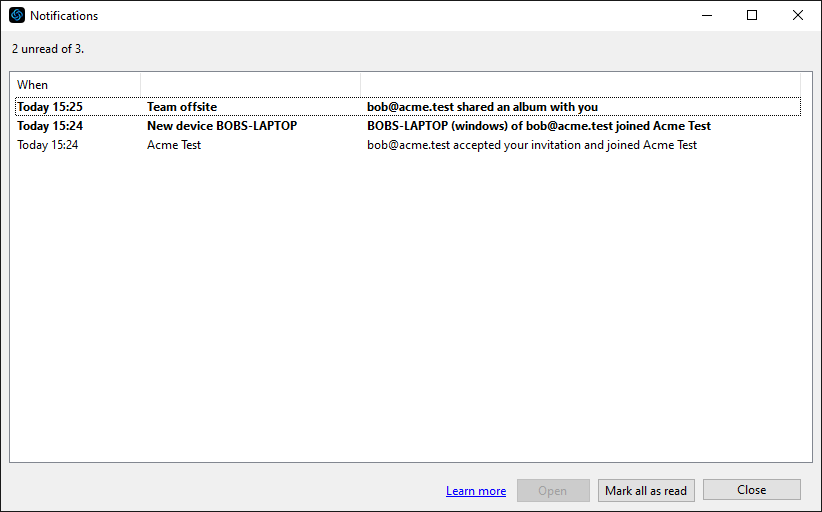
- The tray menu has Notifications, which reads Notifications (3 unread) in bold while any are unread (as on the Mac). It opens your notification history in the Space Backup window, with Mark all as read.
- Without the Space Backup window (no WebView2 Runtime) it opens the Notifications window: the history newest first, with the time ("Today 14:05", "Yesterday 09:12", or the date), title and text; unread in bold; a line such as "3 unread of 41."; Open (or double-click, or Enter), Mark all as read and Close. It updates while open.
- A notification of a kind you turned off shows in the window with "(not popped up: turned off in your notification settings)".
Clicking a notification marks it read and opens:
| About | Opens |
|---|---|
| An album, a share, an invitation | Albums… |
| A new device | Devices |
| A device waiting for the key, a restore approval, a member | The company admin page in your browser |
| Relay credit, an update | Settings… |
| A folder | Backed-up folders… |
| A destination | Destinations… |

Note: Uninstalling Space Backup removes its notification registrations.
Linux#
- Each new notification is a desktop notification (the freedesktop standard, shown by GNOME, KDE Plasma, XFCE and others) from the GUI (
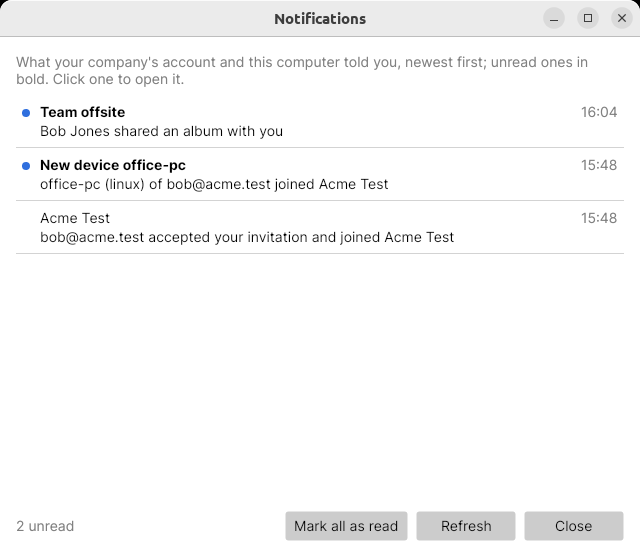
spacebackup-gui). Clicking the banner, or the notification in the desktop's list, opens the right window. - Notifications is in the tray menu and in the main window, with the unread count ("Notifications (3 unread)"); it opens your notification history, with Mark all as read.
- The Notifications window: "What your company's account and this computer told you, newest first; unread ones in bold. Click one to open it." Each row has the time ("14:05", "Yesterday 14:05", "Mon 14:05", or the date); "· this computer" marks the computer's own warnings and "· turned off, not shown" a kind you turned off. Buttons: Mark all as read, Refresh, Close.
- The GUI must be running for banners to show. The history is kept by the daemon in any case, and
spacebackup notificationsworks without the GUI.
Clicking a notification marks it read and opens:
| About | Opens |
|---|---|
| An album, an invitation | Albums |
| Backups shared with you (or no longer shared) | Restore another PC's backups |
| A new device | Devices |
| A device waiting for the key, relay credit | Settings (Settings → Account lists waiting devices with Approve) |
| A restore approval, a member | The company admin page in your browser |
| A folder | Backed-up folders |
| A destination | Destinations |
| An update | The main window |
macOS#
The Mac daemon keeps the same history as Linux (it is the same engine): the account's notifications and the Mac's own warnings, and spacebackup notifications list, read and watch work in Terminal. The menu-bar app is meant to show them as macOS notifications (Notification Center), with a click opening the right window and the unread count in its menu, like the other platforms; until your version does, use the CLI.
iPhone and iPad#
- The account's notifications arrive as push notifications. Tapping one opens the right screen in the app (the album, the shared backups, the approval).
- The app's icon badge shows the unread count.
- The history is in the app (under Settings, or behind a bell icon), newest first, unread marked, with Mark all as read.
- Album adds are pushed at most once per album every 5 minutes: the first add waits 30 seconds for the rest of its burst, and adds within 5 minutes of the last push are summed into the next one ("Anna added 40 photos and videos").
- iOS settings still apply: if notifications are off for Space Backup in Settings → Notifications, nothing is pushed, but the history fills as usual.
See also Push notifications in the iPhone chapter.
The command line#
On every computer, the CLI reads the same history (sbctl on Windows, spacebackup on Linux and macOS):
spacebackup notifications list
spacebackup notifications list --unread
spacebackup notifications read s1042
spacebackup notifications read --all
spacebackup notifications watch --for 10m
See Notification history below for the output.
Choosing what notifies you#
Each of the eight account kinds can be turned on or off, for you, in your account. All are on by default.
- The setting belongs to your account, not to one device: it applies to the pushes on your phones and to the pop-ups on all your computers at once.
- A kind you turned off is still kept in the history, marked as quiet ("(quiet)" in the CLI, "not popped up" on Windows, "turned off, not shown" on Linux). Only the push and the pop-up are skipped.
- Turning album adds off also drops any album-add push that was waiting for you.
- A computer's own warnings (drive full, folder missing…) cannot be turned off; they are shown on that computer only.
- Owners and admins: turning off
key-waitingorrestore-approvaldoes not stop the approval emails; and the approvals still wait on the admin page.
| Kind | Turn off if… |
|---|---|
album-added | You follow busy shared albums and don't want a notification for each batch |
shared | You don't need to know when an album or backups are shared with you |
key-waiting | (Owners/admins) You approve new devices from the admin page or email anyway |
device-joined | (Owners/admins) You don't want to hear about each new device |
restore-approval | (Owners/admins) Someone else handles restore approvals |
relay-credit | (Owners/admins) Auto top-up is on, or someone else handles billing |
invitation-accepted | You don't need to know when people accept your invitations |
remove-request | You check your albums' requests yourself |
album-auto-added | You look at your self-filling albums yourself |
album-job | You keep the app open while adding to albums |
assistant-job | You open the assistant's results yourself |
Where to change it: the switches belong in the iPhone app's notification settings. The computers' apps and the account web pages have no switches for them yet. For integrators, the setting is GET / PUT /:
{"albumAdds": true,
 "kinds": {"album-added": true, "shared": true, "key-waiting": true, "device-joined": false,
           "restore-approval": true, "relay-credit": true, "invitation-accepted": true, "remove-request": true,
           "album-auto-added": true, "assistant-job": true, "album-job": true}}
A PUT changes only the kinds it names; albumAdds is the same switch as kinds["album-added"]. Details: Account service API.
Notification history#
Every app keeps a notification history, newest first, with unread ones marked.
- How long: the account keeps your notifications for 90 days. A computer keeps 90 days too, and at most the newest 1,000.
- Read and unread: opening a notification (clicking the pop-up, the tray item, the row in the window) marks it read. Mark all as read marks everything read.
- In sync across your devices: an account notification you read on one device is marked read at the account service, and your other computers and phones follow within a minute (a computer notices when the unread count differs and fetches again). A notification read while a computer is offline is sent when it is back online.
- Resolved for everyone: a request to the admins (
key-waiting,restore-approval) goes read for every admin once one of them has dealt with it; aremove-requestgoes read once the photo leaves the album. - Fast: a computer that is signed in holds a connection open to the account service, so a new notification shows within a few seconds; anything missed arrives with the next sync (every 60 seconds).
- A new computer fills its history from the account without popping up old notifications.
- A computer's own warnings stay on that computer; they are not on your other devices.
The history on the command line#
spacebackup notifications list --limit 4s1042 * 2026-10-18 14:05 Las Vegas: Anna added 12 photos and videos
l17 * 2026-10-18 09:12 E: is full: E: has 820 MB free. Backups to it stop when it is full: free some space or add another destination.
s1038 2026-10-17 18:40 New device OFFICE-NAS: OFFICE-NAS (Ubuntu 24.04) of bob@acme.com joined Acme
s1031 2026-10-16 11:02 ANNA-PC's backups: anna@acme.com shared ANNA-PC's backups with you (quiet)
2 unread- The first column is the id:
s…for the account's notifications,l…for this computer's own. *marks unread;(quiet)a kind turned off in your settings; the last line is the unread count.--unreadshows only unread ones;--limit Nthe newest N.notifications read <id>.marks those read (like clicking them);. . notifications read --allis Mark all as read. Both answer with how many were marked and how many are still unread, for example "2 marked read; 0 unread". An unknown id ends with exit code 1.notifications watchprints each new notification as it arrives, one line each, until you stop it (Ctrl+C) or--for(for example--for 10m) runs out.--jsongives the full records (id,source,time,kind,title,body,target,read,quiet): one page forlist, one record per line forwatch. See Command line reference.
notifications alone is notifications list.
Backup history and runs#
Notifications are about things that need you. To see what your backups actually did, every computer keeps a record of its runs and of every file operation. On the computers this is in the CLI; the tray and the main window also have Open log, which opens the app's readable log.
What is backed up where: history#
history lists the date folders (one per backup date) on each destination: this computer's own, and those of other computers that back up to its drives (the machine column says whose), with whether each is complete and its size.
spacebackup history
spacebackup history --folder ~/Projects
spacebackup history --dest OFFICE-NAS:/mnt/backup
spacebackup history --pc Annas-iPhone
--pc <name>shows another device's dates, on this computer's drives and on the online computers that hold them, if its backups are shared with you or a restore of it was approved; your own computer's name shows your own. Not shared and not here: "… are not shared with you …" (exit code 1).- An incomplete date is one that is still being written, or was interrupted; it is completed by the next run.
Every run: runs#
spacebackup runs list --limit 10
spacebackup runs show last
spacebackup runs show 7f3a
runs list (or just runs) shows every run: its id, what started it, when it started and ended, the folders and destinations, how many files and bytes were copied, linked, skipped or failed, verification retries, and the result.
What started a run (the trigger):
| Trigger | Meaning |
|---|---|
schedule | The folder's schedule (daily, weekly…) |
catch-up | A run missed while the computer was off or asleep |
drive-back | A drive came back and is synced |
peer-back | Another computer (or its drive) came back online and is synced |
now | Back up now (the tray, the main window, or now on the command line) |
selection | Chosen files or folders: Space Backup Now in the file manager, or now with paths |
resume | An interrupted run carrying on |
queued | A run that waited for another to finish |
command | Another request, such as a run started for a particular date |
runs show <id> gives one run in full: the result per destination, the slowest items and every failed item with its error. last is the newest run; the first 4 or more characters of an id are enough.
What happened, in order: events#
spacebackup events --since 2026-10-18
spacebackup events --follow
events is the high-level story: state changes, warnings, computers coming online and going offline, runs starting and ending, updates, settings changed, and the notifications shown. --follow keeps printing new ones as they happen.
Every file: the transaction log#
Under the runs, each computer keeps a transaction log: one record per file copied, failed, verified, retried, resumed, copied on to another computer, pruned, repaired by the weekly check or restored (unchanged files are counted per folder, not one by one). It also records what the computer did for other devices.
| Where | Windows %APPDATA%\; Linux ~/ |
| Kept | 90 days by default (setting txlog-days, 7 to 3650), compressed after 7 days |
| Read with | tx (query, --follow for live), explain <path> (everything known about one file: which folder covers it, every date and destination that holds it, and why it was or wasn't copied last run), transfers, queue, stats |
spacebackup tx --run last --result fail
spacebackup explain ~/Projects/report.docx
All of these commands, their options and their --json output are in Transaction log and diagnostics commands. For support, diag collects the log, the transaction log and the configuration (without keys) into one file (Diagnostic bundle).
On the iPhone#
The phone keeps its own Backup log on the Backup tab: every run in detail, and the scheduled runs iOS began that could not start, with the reason (The backup log). On a computer, history - shows the phone's dates on the drives.
Troubleshooting notifications#
| What you see | What to do |
|---|---|
| No pop-ups on Windows, but the tray's Notifications list fills | Windows notifications are off for Space Backup or Focus Assist / Do not disturb is on. Check Settings → System → Notifications. Where Windows refuses toasts, Space Backup falls back to tray balloons |
| No banners on Linux | The GUI (spacebackup-gui) must be running, and your desktop must show notifications (check its Do not disturb setting). The history still fills: spacebackup notifications list |
| A notification is in the list but never popped up | Its kind is turned off in your notification settings (marked quiet) |
| No account notifications at all on a computer | The computer must be signed in to the account (Sign in). The computer's own warnings show even when it is not |
| Read on the phone, still unread on the computer | It follows within a minute once the computer is online |
| An admin request stays unread after you dealt with it on another device | It goes read when the device has its key or the restore is decided; give it a minute to sync |
| The same drive warning every day | The drive is still missing or full: once a day while unread is by design. Fix the drive, or take it out of the destinations |
More in Troubleshooting.